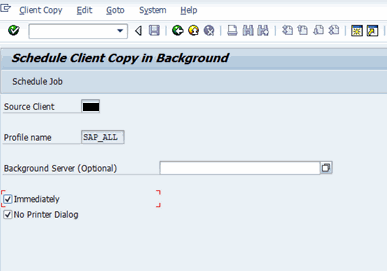
In rare case, administrator might experience RFC error during the client copy process.
Steps to create the RFC for client copy:
1) TCODE: SCCL and sample screen of client copy
2) Subsequent screen of the client copy
3) Error occur on the client copy
4) Login to client: 000 with DDIC or SAP* or any administration account and execute TCODE: SM59 to create a RFC connection for the source client (FINBTR@<SID>CLNT<SourceClient>)
5) Used a login account with "sap_all" in the source client and test the connection with "Remote Logon" and "Connection Test" button
6) Continue the client copy process and the error on "step 3" should be resolve
Steps to create a new menu node that attached to a customized TCODE ...
Steps:
1) Execute TCODE: SE43 and enter the menu name to create a new node
2) Click the "Extend" button.
3) double click on the relevant "Report Menu"
4) Select the sub node to be create and click on the "Add Entry at Same Level' button.
5) Enter the descriptions and the customized TCODE to be shown.
6) Create the new transport request.
7) New Menu item created
8) The new node appear in the menu.
9) Double click to execute the program / TCODE.
* To delete the node
1) Access the SE43 as shown above and select the node to be delete.
2) Click the "Yes" button.
3) The node been removed.
In this example, we'll create a customized TCODE that will be running for a customized program...
Steps:
1) Execute TCODE: SE93 and click the "Create" button
2) Enter a new TCODE and the Description for it. Select "report transaction".
3) Choose or enter the customized program.
4) Select or enter the package (ex: ZHR) and click "Save" button.
5) Generate the transport request. Click the new button.
6) Enter the relevant transport request descriptions.
7) The request created successfully.
8) The new customized TCODE created successfully.
9) Execute the new TCODE: ZTEST1
10) The customized program executed successfully.